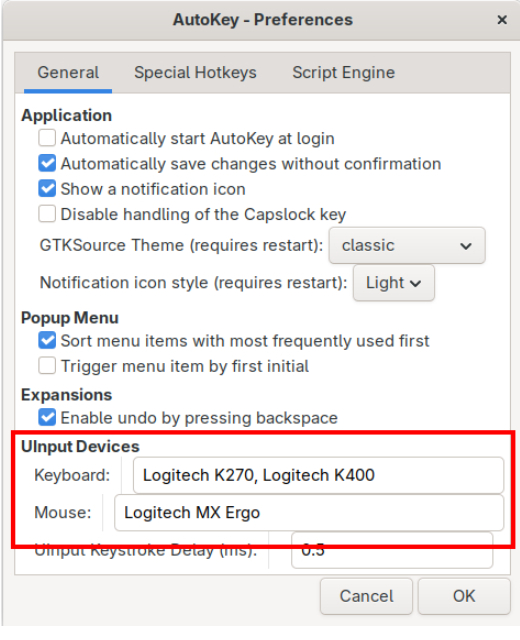
AutoKey tells me it can’t find my keyboard/mouse
AutoKey on Wayland tries to connect to all of the keyboards and mice attached to the system. However, it only recognizes devices that have the word “keyboard” or “mouse” in their names, so it may not have recognized your device(s). You will get a pop-up error message from AutoKey if it can’t recognize at least one keyboard and one mouse:
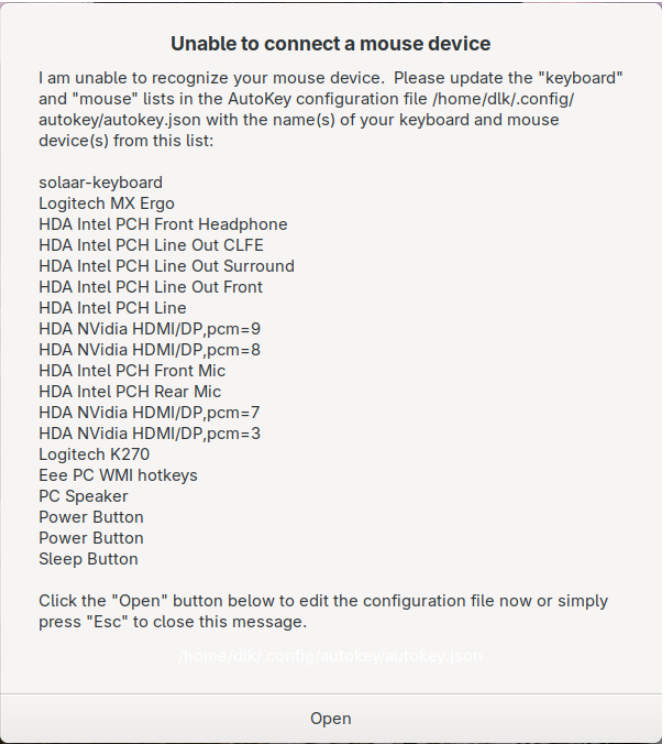
As the message says, you should enter the names of the keyboard and mouse devices into the AutoKey configuration file:
First step, you need to find and remember the exact names of the devices you want to add, as they are given in the list provided by the pop-up message. Then, when you click the “Open” button, you will be placed into an edit session with the AutoKey configuration file. You need to enter the keyboard and mouse names in the keyboard: [] and mouse: [] lists as shown in the edit session below:
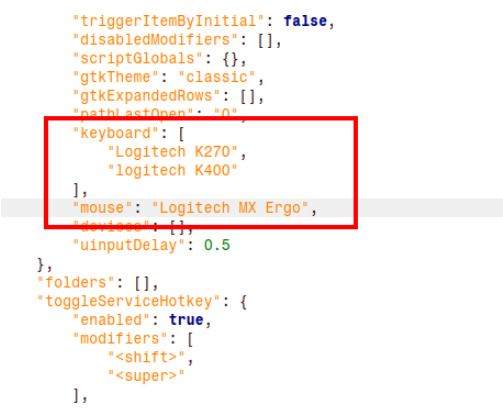
This example demonstrates that the values can be a list of device names enclosed in brackets ([]) or a single device name as a string. The Logitech K400 is a USB keyboard that I don’t always have attached to the system, but I include it here so that AutoKey will recognize it when I do plug it in. AutoKey can recognize new devices when they are plugged into a running system provided it knows their names, or their names have the words “keyboard” or “mouse” in them, same as before.
Now, when I restart AutoKey, I see this in the debug log:
2026-02-09 12:44:53,562 DEBUG - autokey.uinput_interface - The following devices are available on this system:
        solaar-keyboard
        Logitech MX Ergo
        HDA Intel PCH Front Headphone
        HDA Intel PCH Line Out CLFE
        HDA Intel PCH Line Out Surround
        HDA Intel PCH Line Out Front
        HDA Intel PCH Line
        HDA NVidia HDMI/DP,pcm=9
        HDA NVidia HDMI/DP,pcm=8
        HDA Intel PCH Front Mic
        HDA Intel PCH Rear Mic
        HDA NVidia HDMI/DP,pcm=7
        HDA NVidia HDMI/DP,pcm=3
        Logitech K270
        Eee PC WMI hotkeys
        PC Speaker
        Power Button
        Power Button
        Sleep Button
2026-02-09 12:44:53,562 DEBUG - autokey.uinput_interface - I grabbed these devices from that list:
        solaar-keyboard
        Logitech K270
        Logitech MX Ergo
AutoKey has recognized and “grabbed” my keyboard and mouse devices.
Once AutoKey is running, the keyboard and mouse device names can be adjusted in AutoKey’s Edit ⮞ Preferences dialog. You can also use this dialog to add additional devices that AutoKey missed during startup.